Wizard tutorial
How to create a scheduled messages app
A scheduled messages application sends messages to subscribers at a time you choose: hourly, daily, weekly or monthly.
6 steps · Screenshots from the AppLink platform
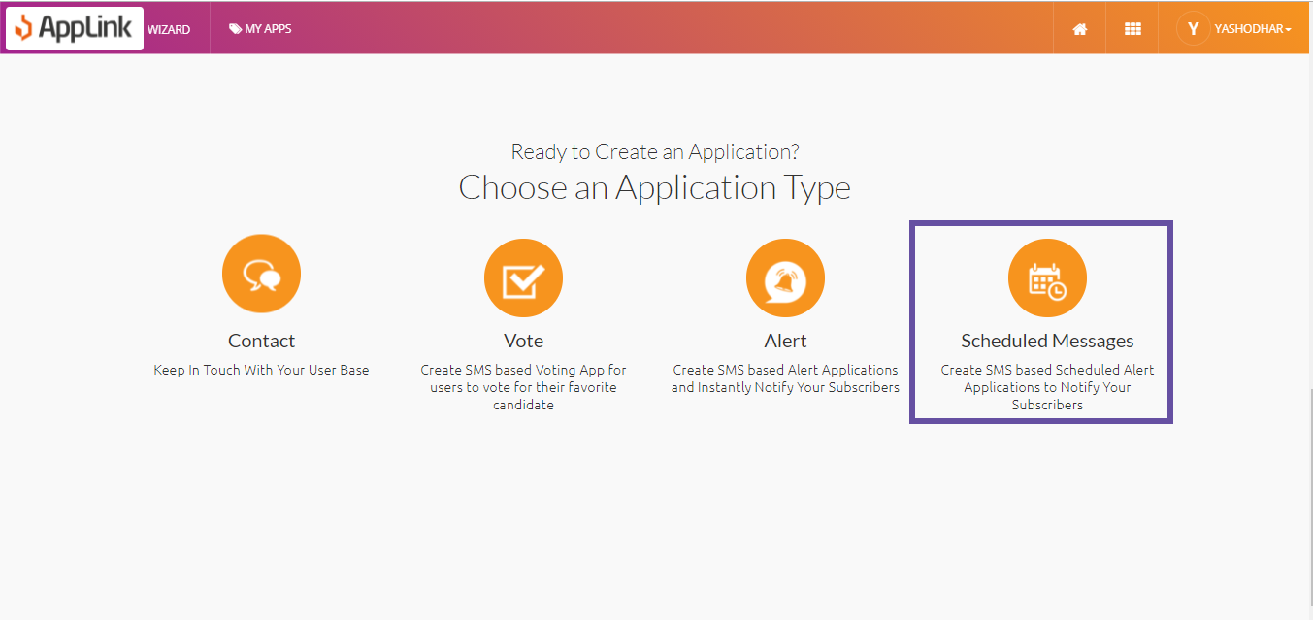
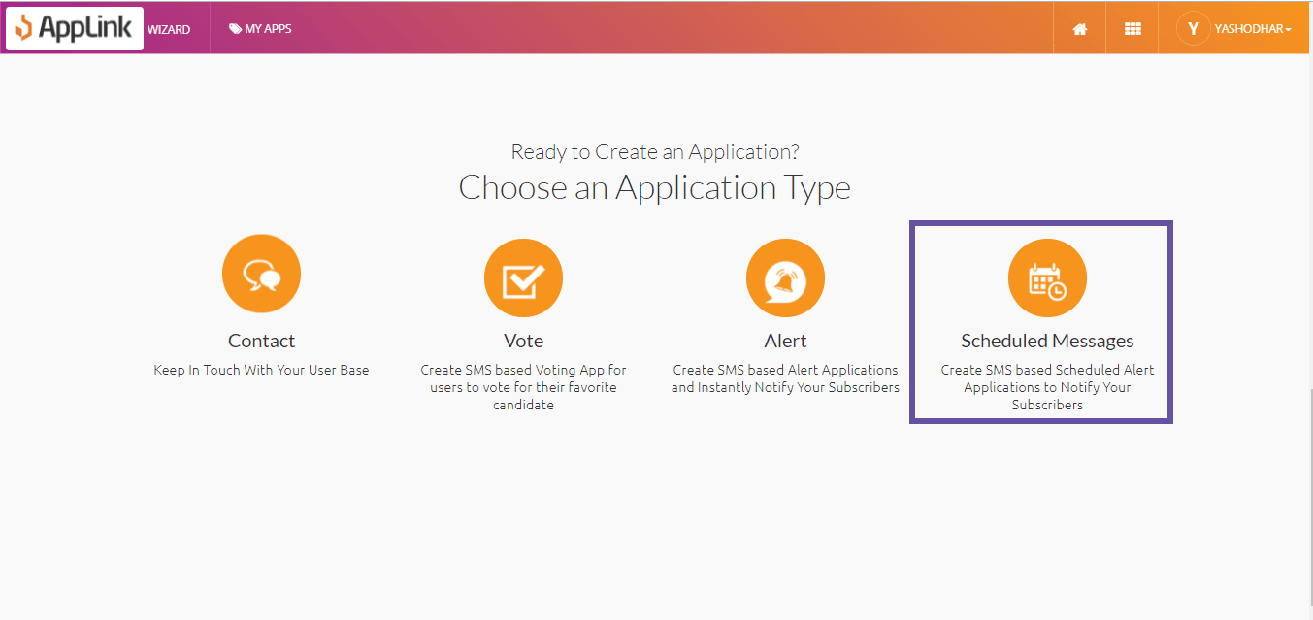
Step 1: Select the Scheduled Messages application pattern.
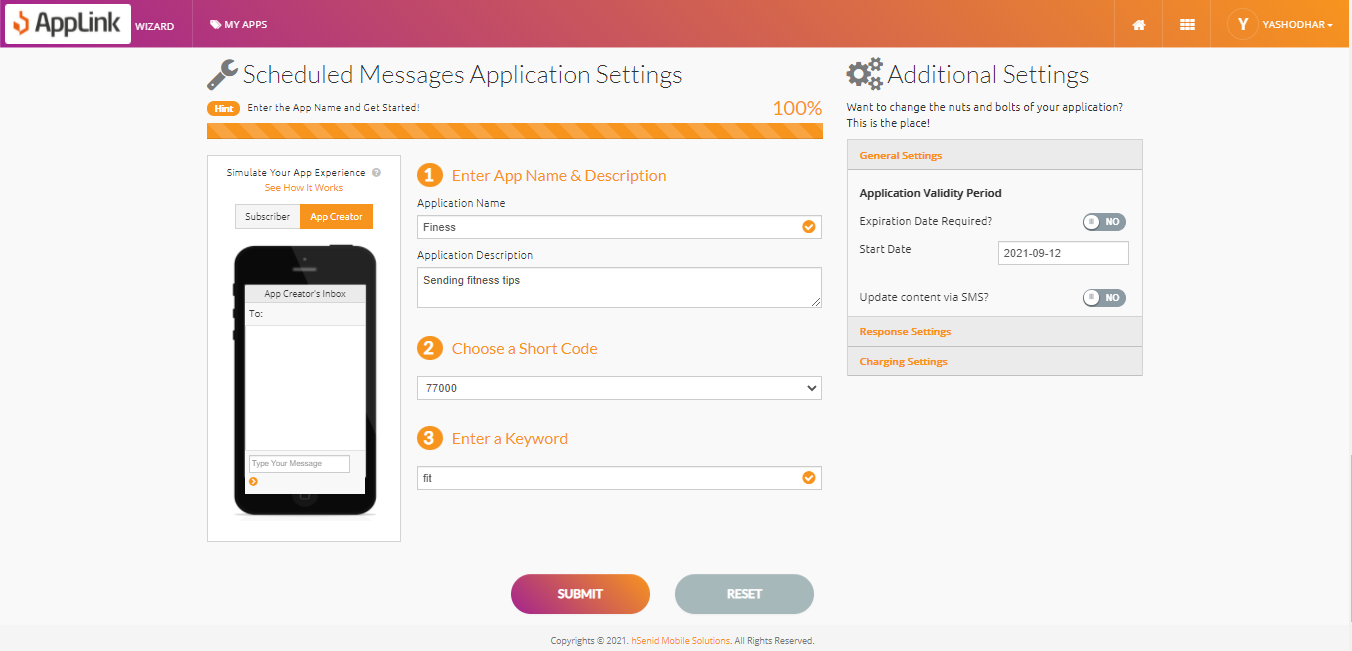
Step 2: Fill in the application details.
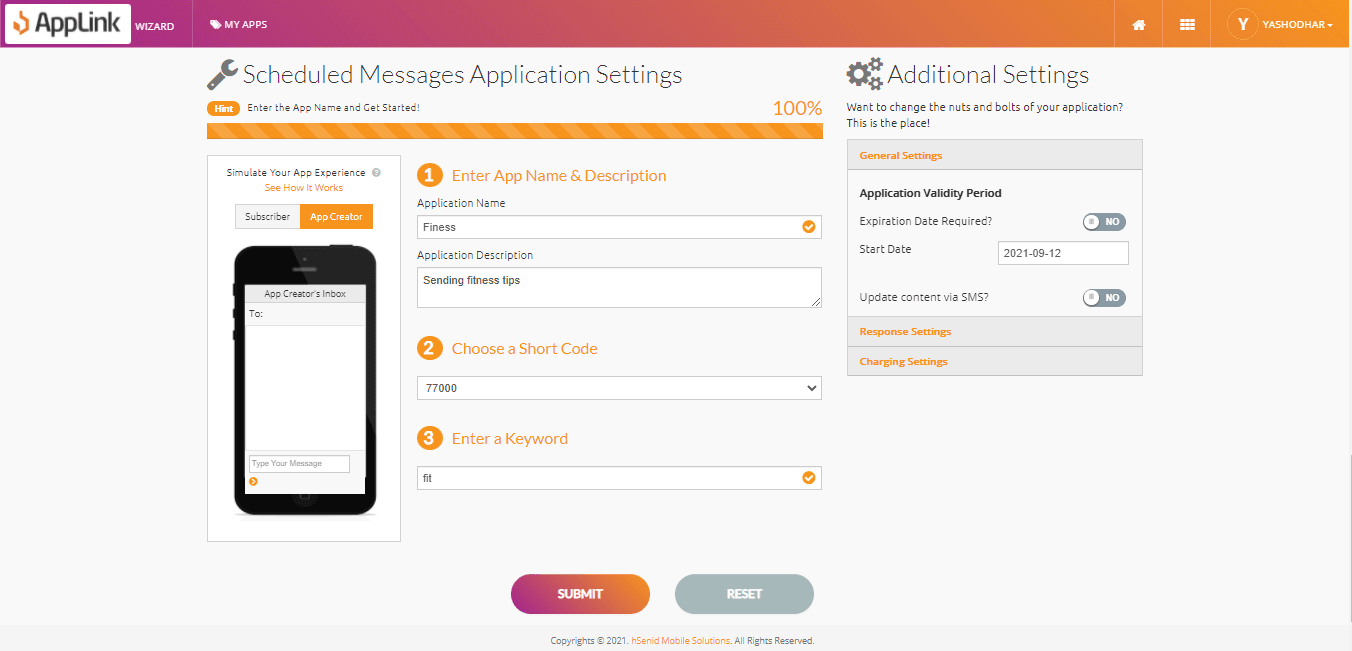
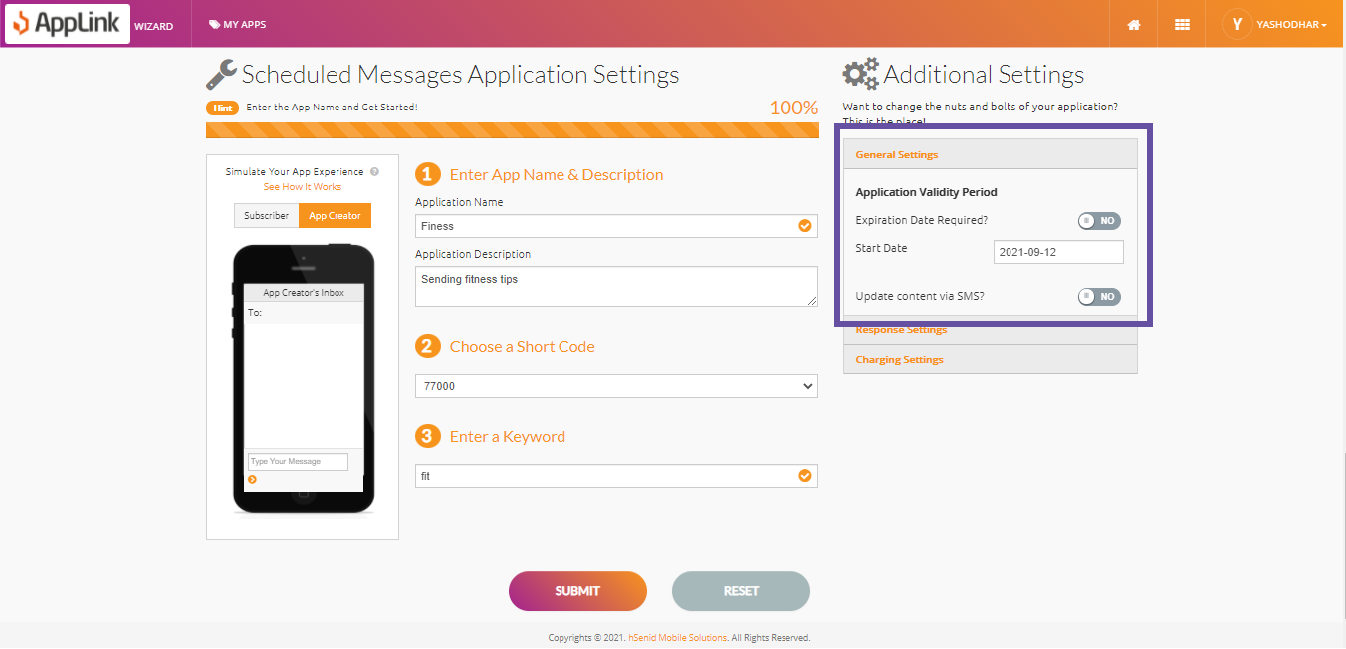
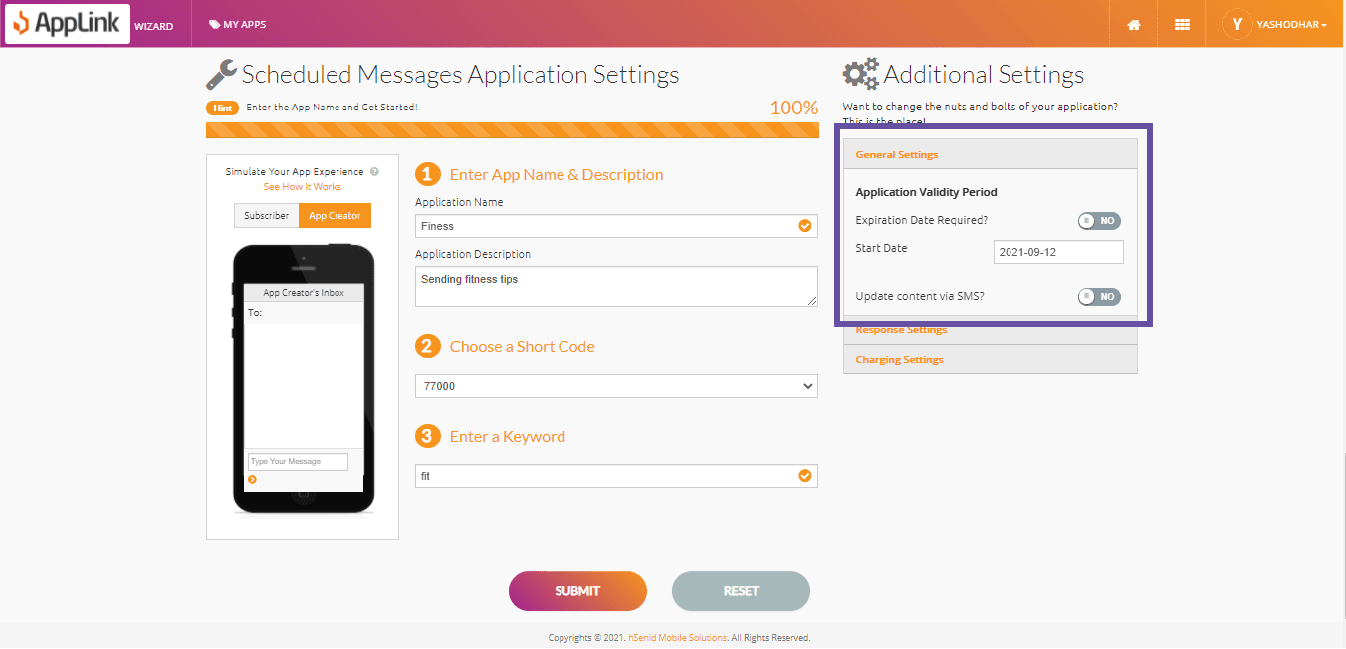
Step 3: Fill in the application validity details.
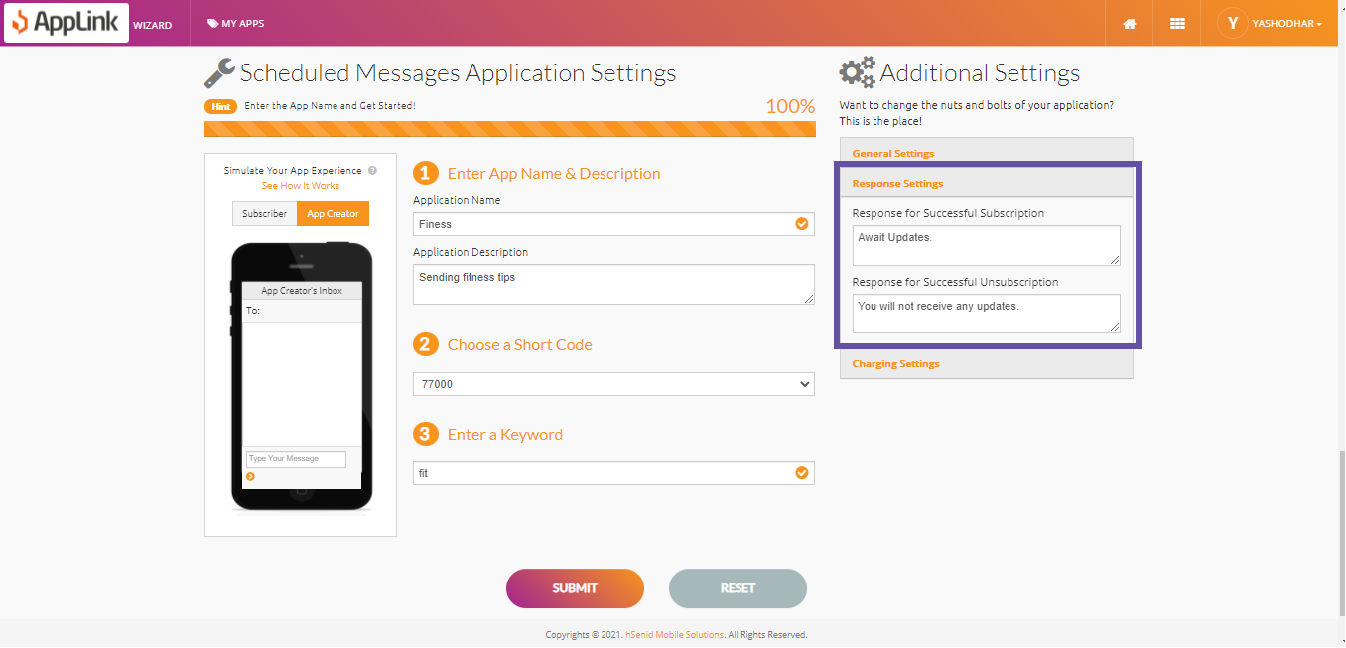
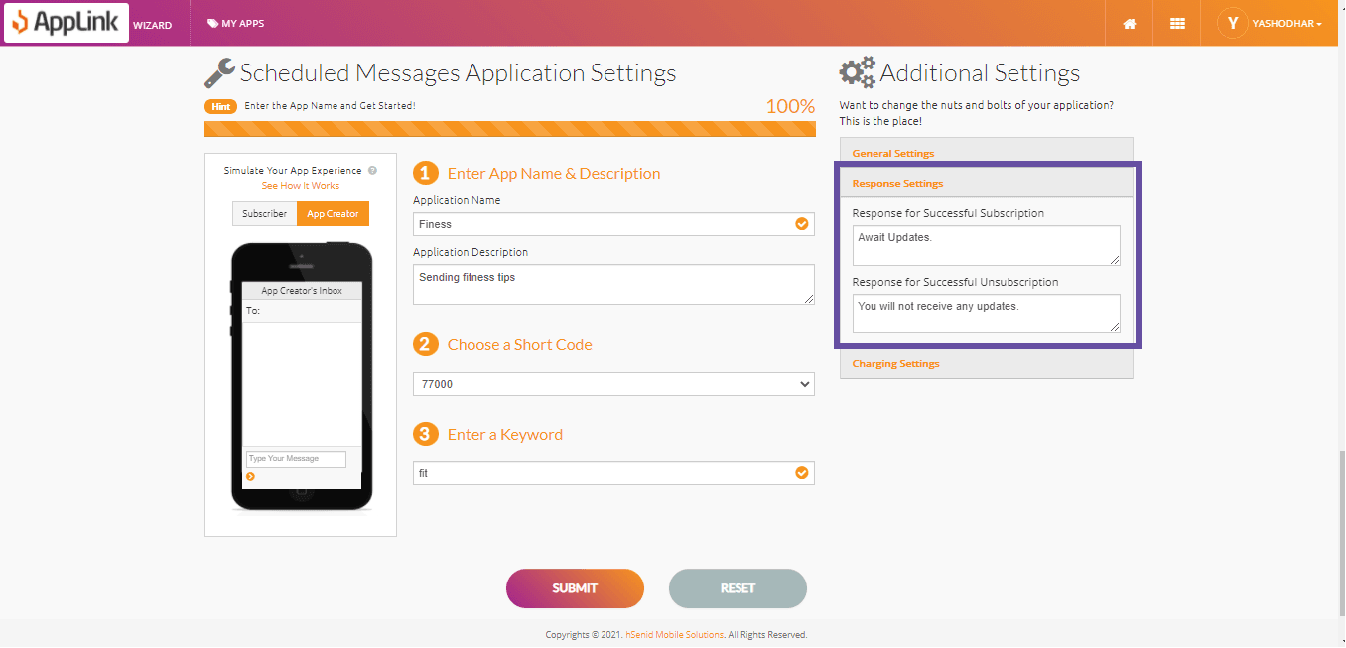
Step 4: Fill in the response settings.
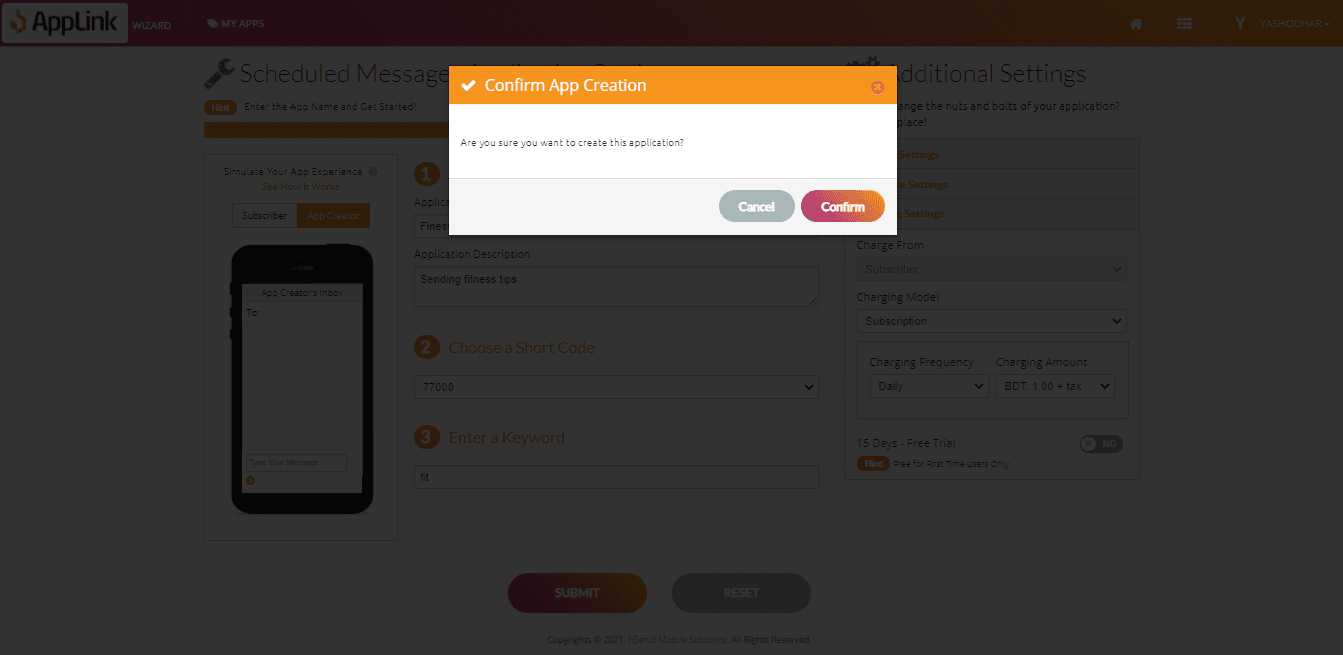
Step 5: Fill in the charging details and click Submit.
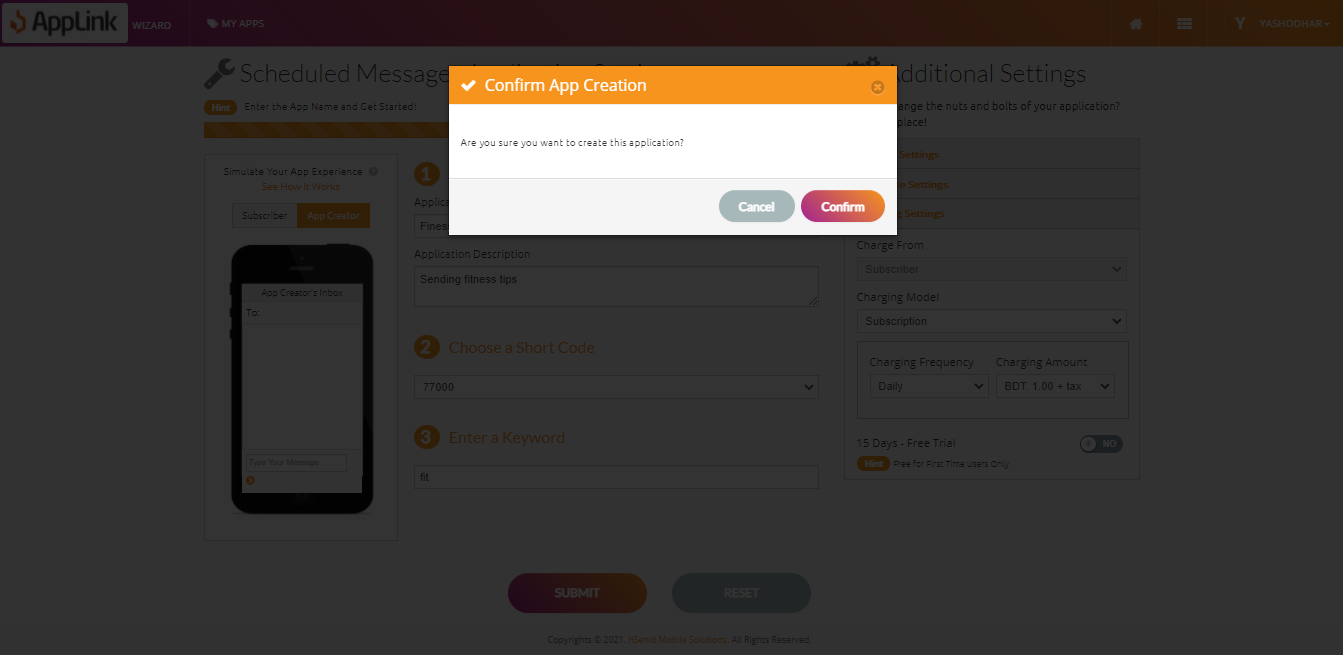
Step 6: Confirm your application creation.